
UbikiTouch
Download ApkUbikiTouch Application Screenshots


UbikiTouch AI Editor's Review
UbikiTouch enhances app functionality with customizable swipe gestures. It simplifies navigation and offers quick access to various actions, boosting productivity. While setup may require some learning, the benefits of streamlined control are significant.
Comprehensive Analysis
UbikiTouch empowers users to augment existing applications with personalized swipe gestures. This innovative tool streamlines navigation and provides instant access to a range of actions within apps. The user experience is significantly enhanced as common tasks become more efficient. While the initial setup might demand a bit of a learning curve, the result is a more intuitive and productive mobile experience. It's a valuable tool for anyone looking to optimize their Android workflow.
Key Advantages
- Customizable swipe gestures for enhanced control
- Improved navigation and quick access to actions
- Boosts productivity by simplifying complex tasks
Areas for Improvement
- Initial setup can be slightly complex
- May require some learning to master gestures
The Description of UbikiTouch
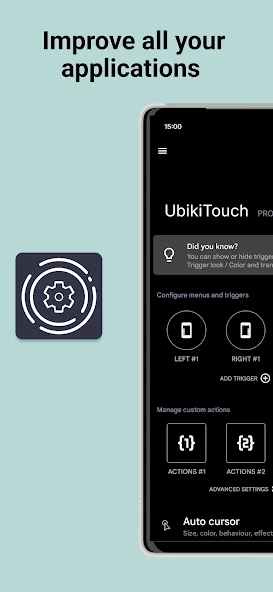
Site Editorial Commentary:Improve all your applications by swiping the edges of your screen
UbikiTouch empowers you to enhance any application by utilizing intuitive screen edge swipes.What can UbikiTouch do?
* Navigate between or within apps using simple gestures.
* Automate repetitive tasks for increased efficiency.
* Choose from a variety of menu styles to suit your workflow: pie menu, fluid effect menu, or cursor.
UbikiTouch offers a unique, app-specific customization feature: define custom actions tailored to each of your favorite applications! Unlock the full potential of any app by assigning actions to specific screens, such as pressing a button, selecting an item, or performing a swipe. You can even chain actions together to exeCute more complex tasks.
See it in action: [https://youtu.be/Vdn6GO4-Nlc](https://youtu.be/Vdn6GO4-Nlc)
In addition to app-specific actions, UbikiTouch provides global actions including:
* Back Button, Recent Apps, Home
* Previous App
* Toggle Bluetooth, Wifi, gps, Auto-Rotate, Split Screen
* Sound, Brightness
* Cursor
* Launch an application
* Launch a shortcut (Dropbox folder, Gmail label, contact, route, etc.)
Full list available at [https://ubikitouch.toneiv.eu/faq.html](https://ubikitouch.toneiv.eu/faq.html)
UbikiTouch is highly configurable:
* Up to 15 independent triggers with customizable placement, size, and colors.
* Up to 10 actions per trigger.
* Choose from four distinct menu styles: pie, curve, wave, and cursor, each customizable to your liking.
The app is ad-free.
The Pro version unlocks even more features:
* Define tasks for an unlimited number of applications.
* Create up to 15 independent triggers.
* Access more actions, including the ability to launch applications or shortcuts directly.
* Remote cursor access.
* Access the Recent Applications menu.
* Adjust Volume and Brightness with sliders.
* Complete menu customization: animation, size, color, and more.
Privacy Matters
We are committed to protecting your privacy. UbikiTouch is designed to operate without requiring internet access, ensuring that no data is transmitted from your device without your explicit consent. Please refer to our privacy policy for more details.
Accessibility Service
UbikiTouch requires the accessibility service to be enabled for core functionality. This service is solely used to enable UbikiTouch's features and does not collect or transmit any personal data.
Permissions Required:
* View and control screen:
* Detect the foreground application to enable or disable services based on user-defined rules.
* Display trigger zones and menus.
* Record custom actions.
* View and perform actions:
* carry out navigation actions (home, back, etc.).
* Perform touch actions.
* Execute custom actions.
The usage of these accessibility features will never be used for anything else. No data will be collected or sent across the network.
HUAWEI Devices
On some HUAWEI devices, you may need to add UbikiTouch to the list of protected applications.
Enable UbikiTouch in: [Settings] -> [Advanced settings] -> [Battery manager] -> [Protected apps] -> Enable UbikiTouch
XIAOMI Devices
Auto-start is disabled by default. Please allow UbikiTouch in the following screens:
* [Settings] -> [Permissions] -> [Autostart] -> Set autostart for UbikiTouch
* [Settings] -> [Battery] -> [Battery Saver] -> [Choose apps] -> Select [UbikiTouch] -> Select [No restrictions]
FAQ
Detailed information is available at [https://ubikitouch.toneiv.eu/faq.html](https://ubikitouch.toneiv.eu/faq.html)
Report Issues
GitHub: [https://github.com/toneiv/UbikiTouch](https://github.com/toneiv/UbikiTouch)
What's New
• New: possibility to customize angle for each menu item (see Trigger / Menu actions)
• New: possibility to add a glowing halo effect on menu and/or tracker
• New: possibility to add a feedback message to a custom text action (see Custom Action / Action / Edit)
• Improved "click & drag" functionality of the cursor
• Improvement in movement detection on triggers
• Fixed: paste function should now work on Samsung Android 11
• Various bug fixes and improvements


